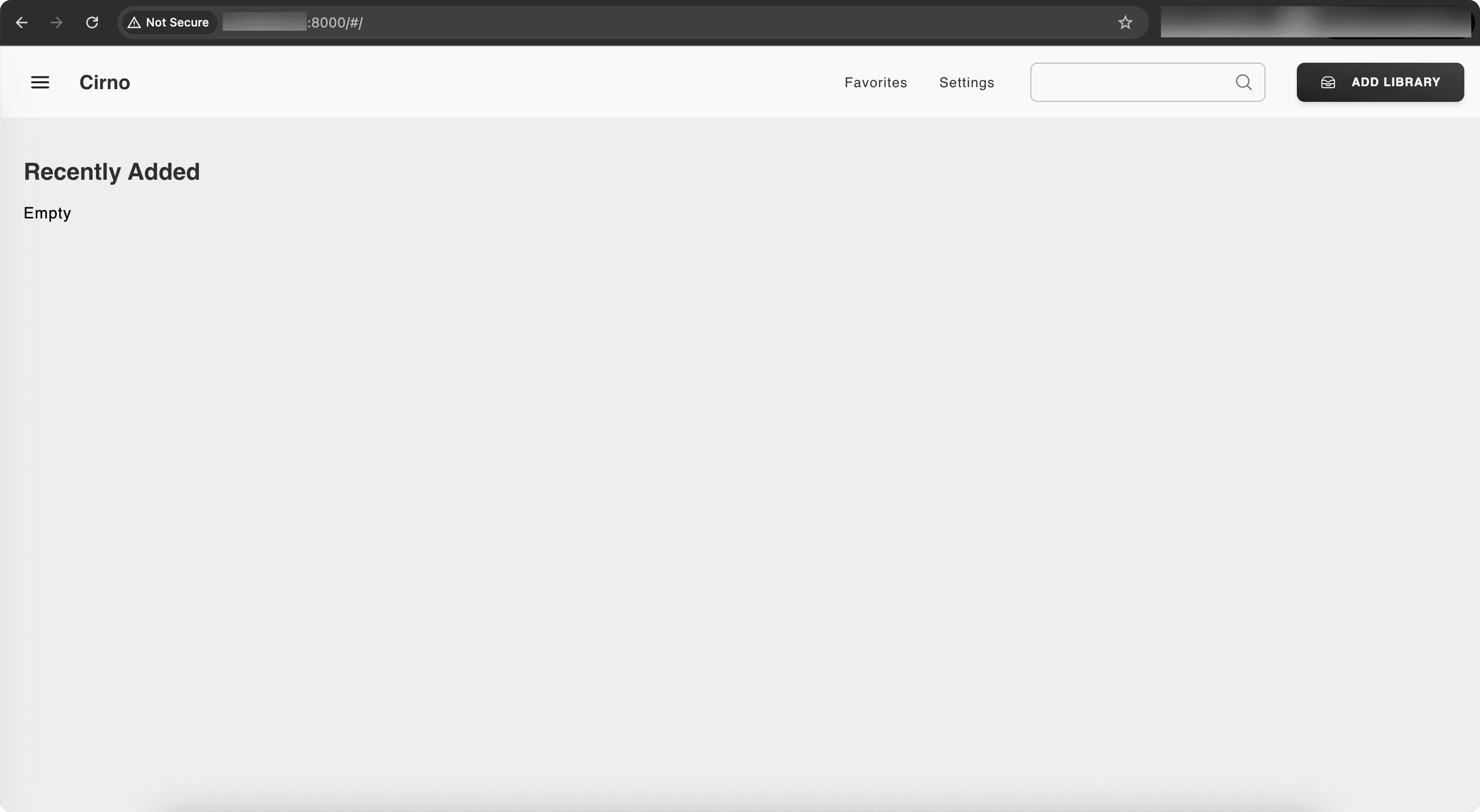
Install with Docker on Synology NAS
Note: The instructions below are based on Synology NAS DSM 7.2.1-69057 Update 6. But should work on other NAS or other versions as well.
-
Install Container Manager on your Synology NAS if you haven't already. You can follow the official guide here (opens in a new tab).
-
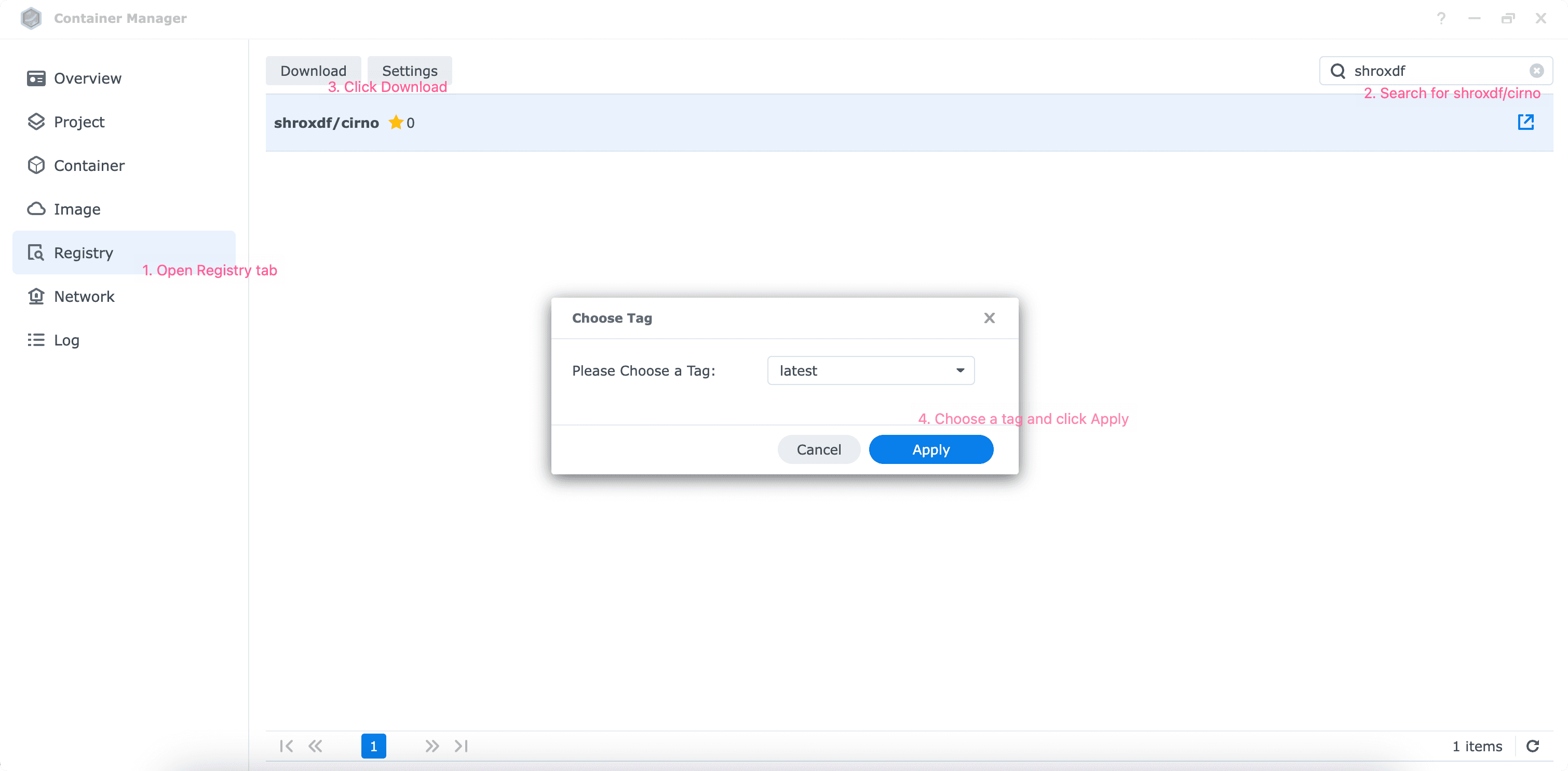
Search for
shroxdf/cirnoin the Container Manager and click on theDownloadbutton. Choose the tag you want to install orlatest, and click on theApplybutton.
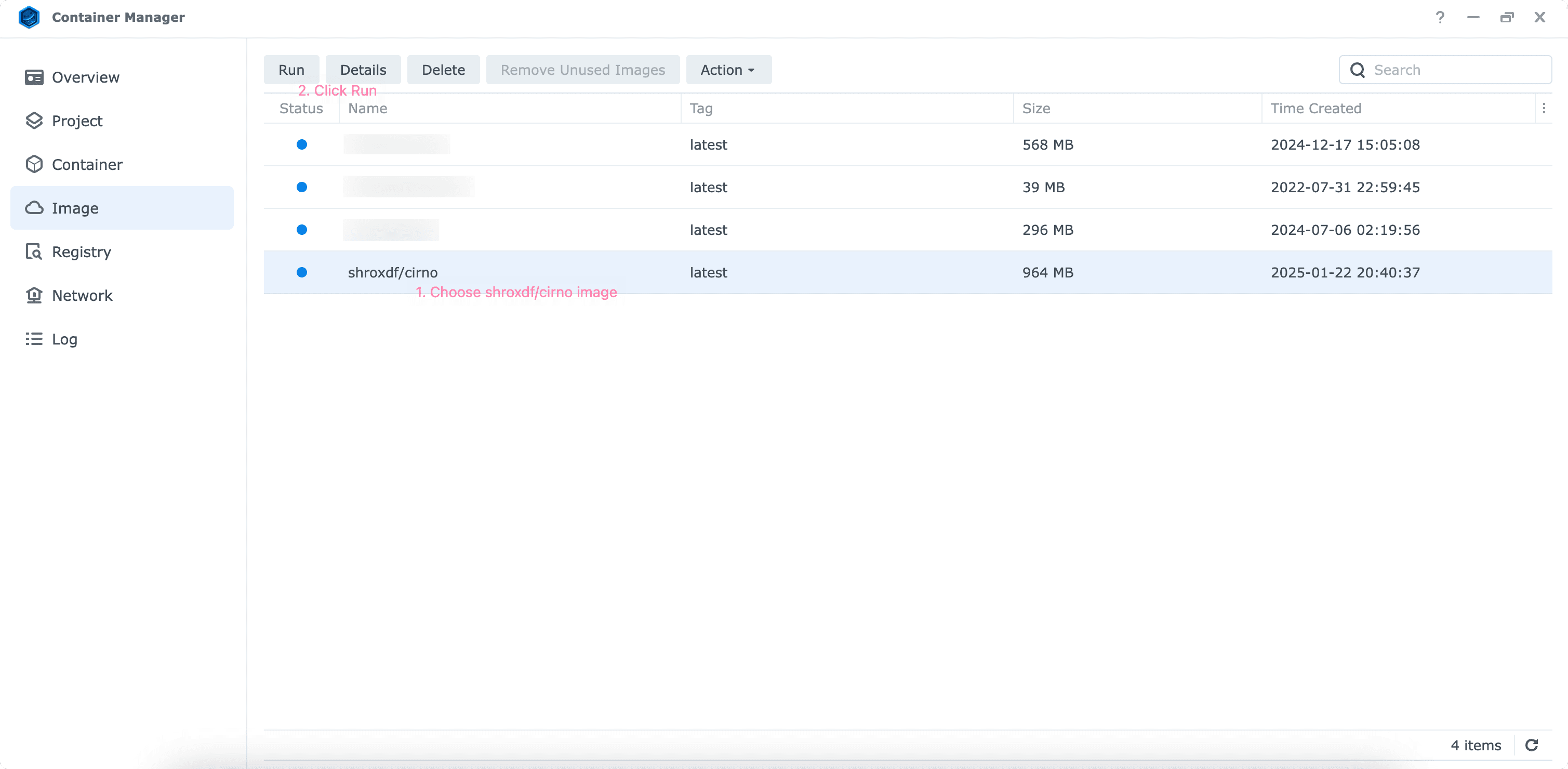
- Create a new container based on the image you downloaded in the previous step.
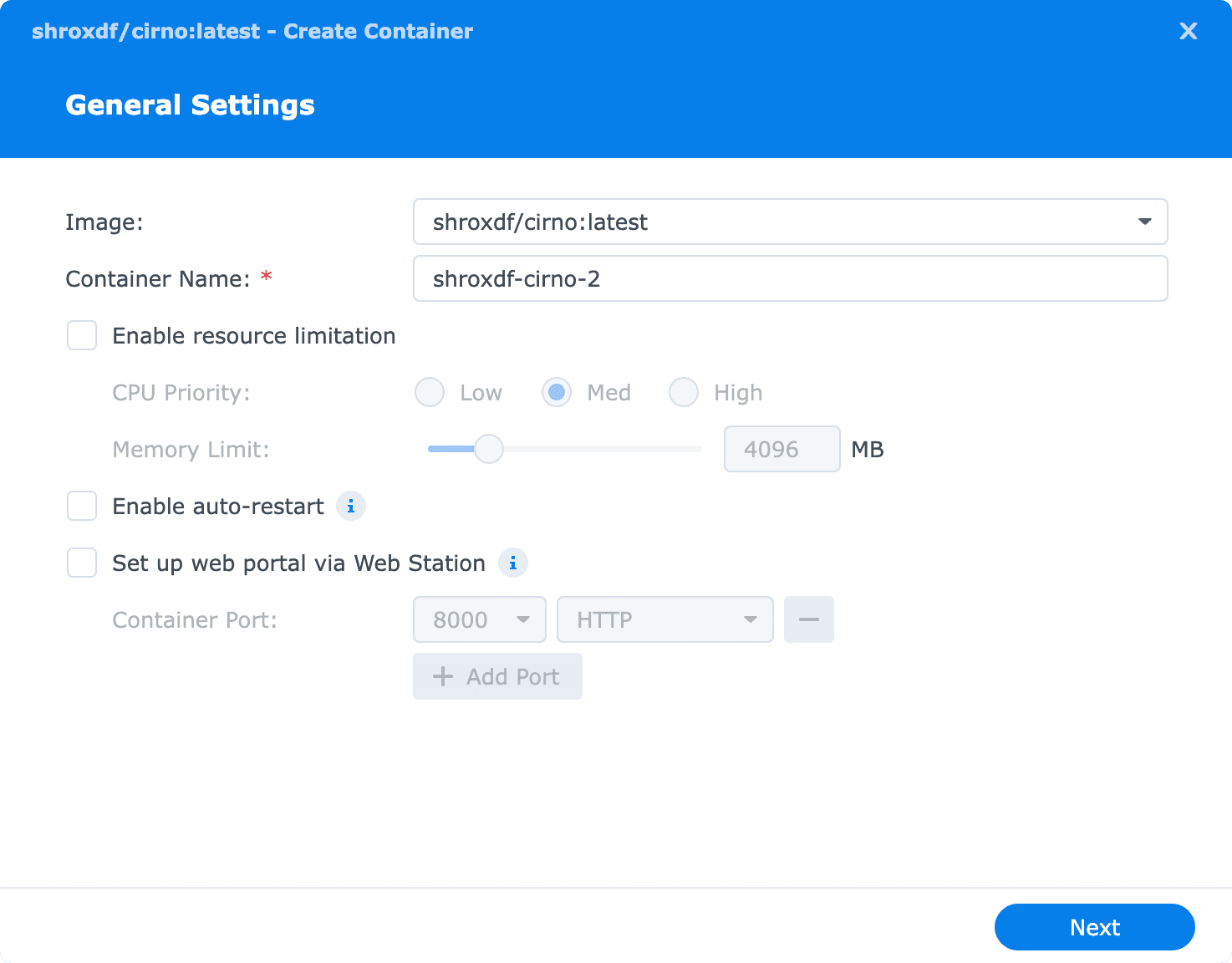
- Keep the General Settings as default unless you want to change it. Click
Nextto continue.
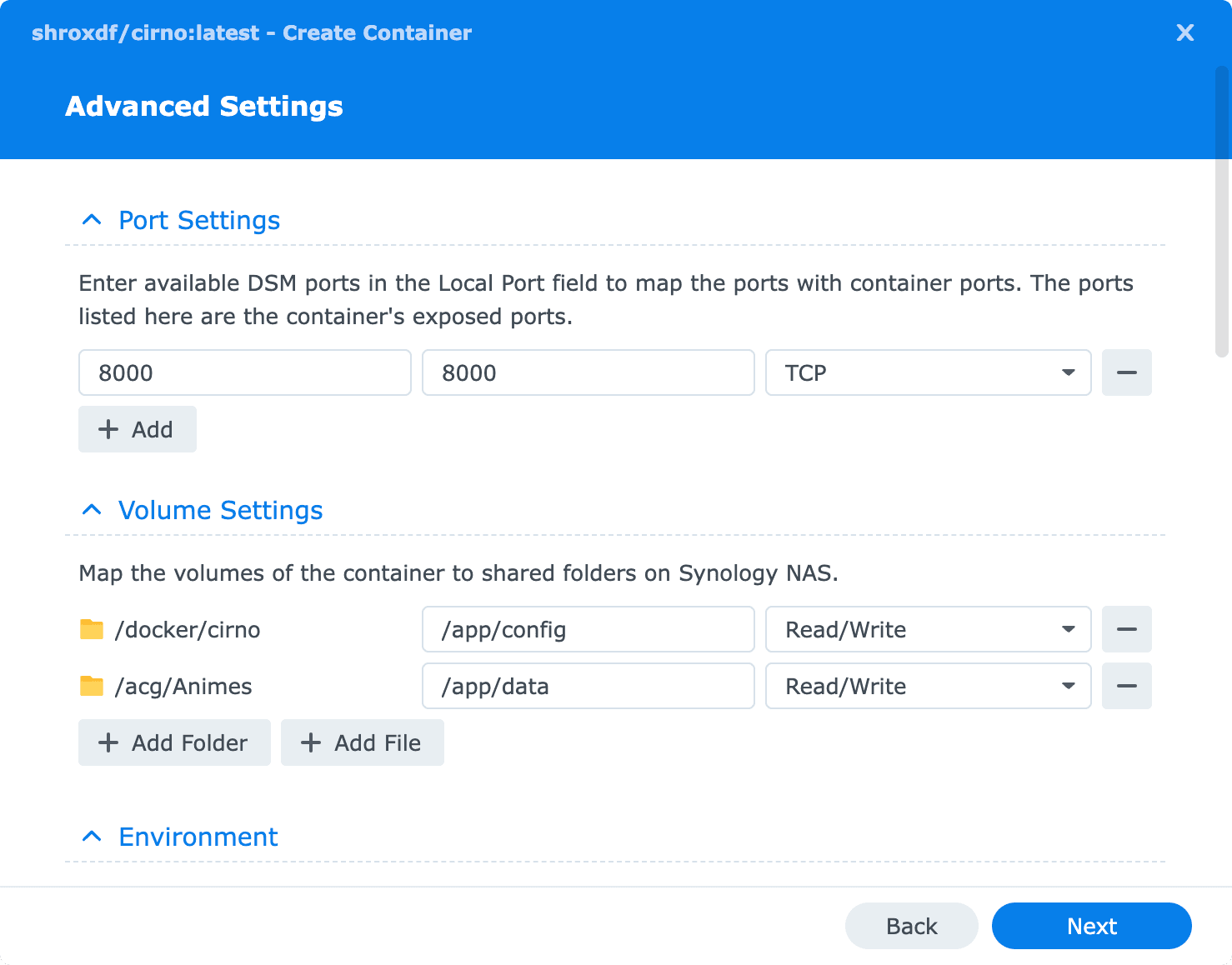
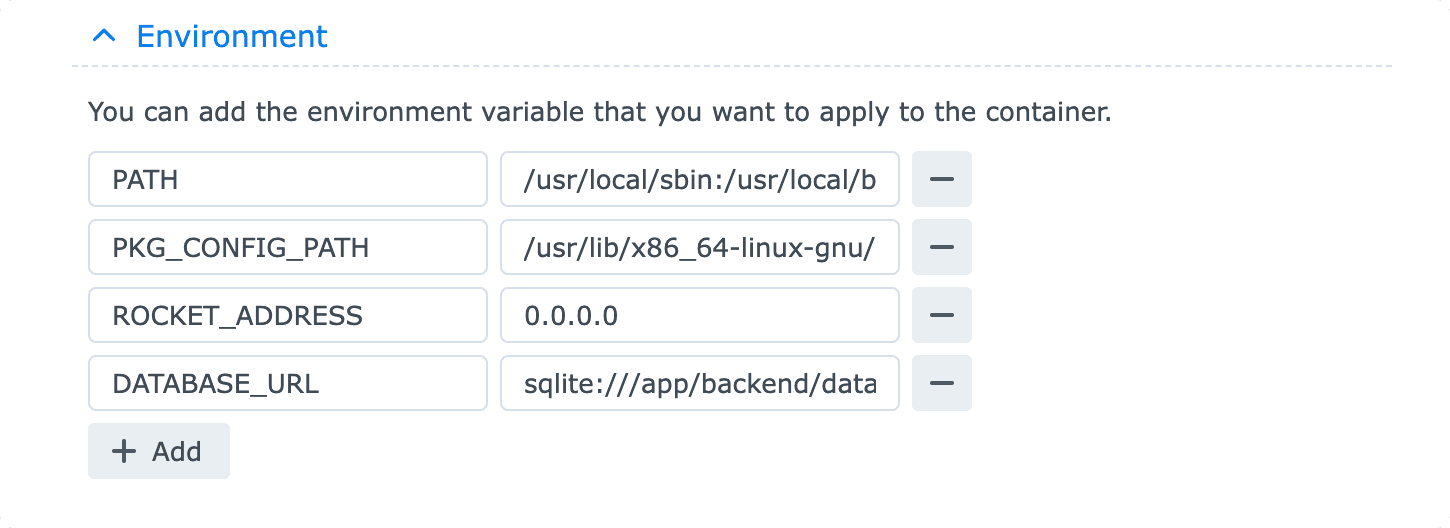
- Change Advanced Settings as the table below.
| Name | Value |
|---|---|
| Post | 8000 (You can change this to any port you want) |
| /path/to/your/config | /app/config |
| /path/to/your/data | /app/data |
| DATABASE_URL | sqlite:///app/backend/database.db |
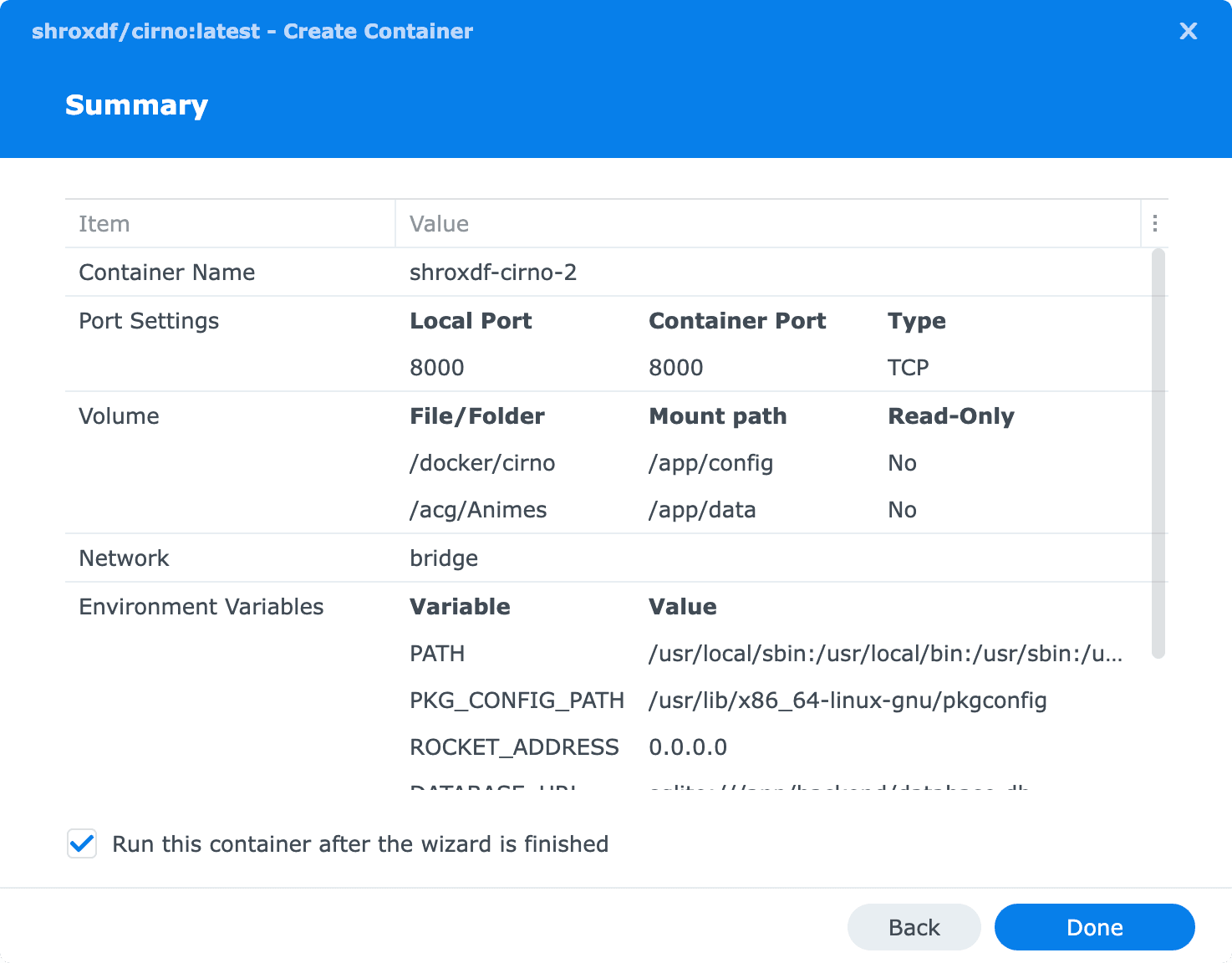
- Check the configurations and click
Doneto create the container.
- After the container is created and running, you can access Cirno at
http://your-nas-ip-address:8000. Have fun! 🤩